Low FPS
Consistently low FPS usually points to graphics settings, hardware limits, or upscaling choices.
PC Help
Stutter and low FPS need a different troubleshooting flow from crash codes, so this page separates symptoms before recommending fixes.
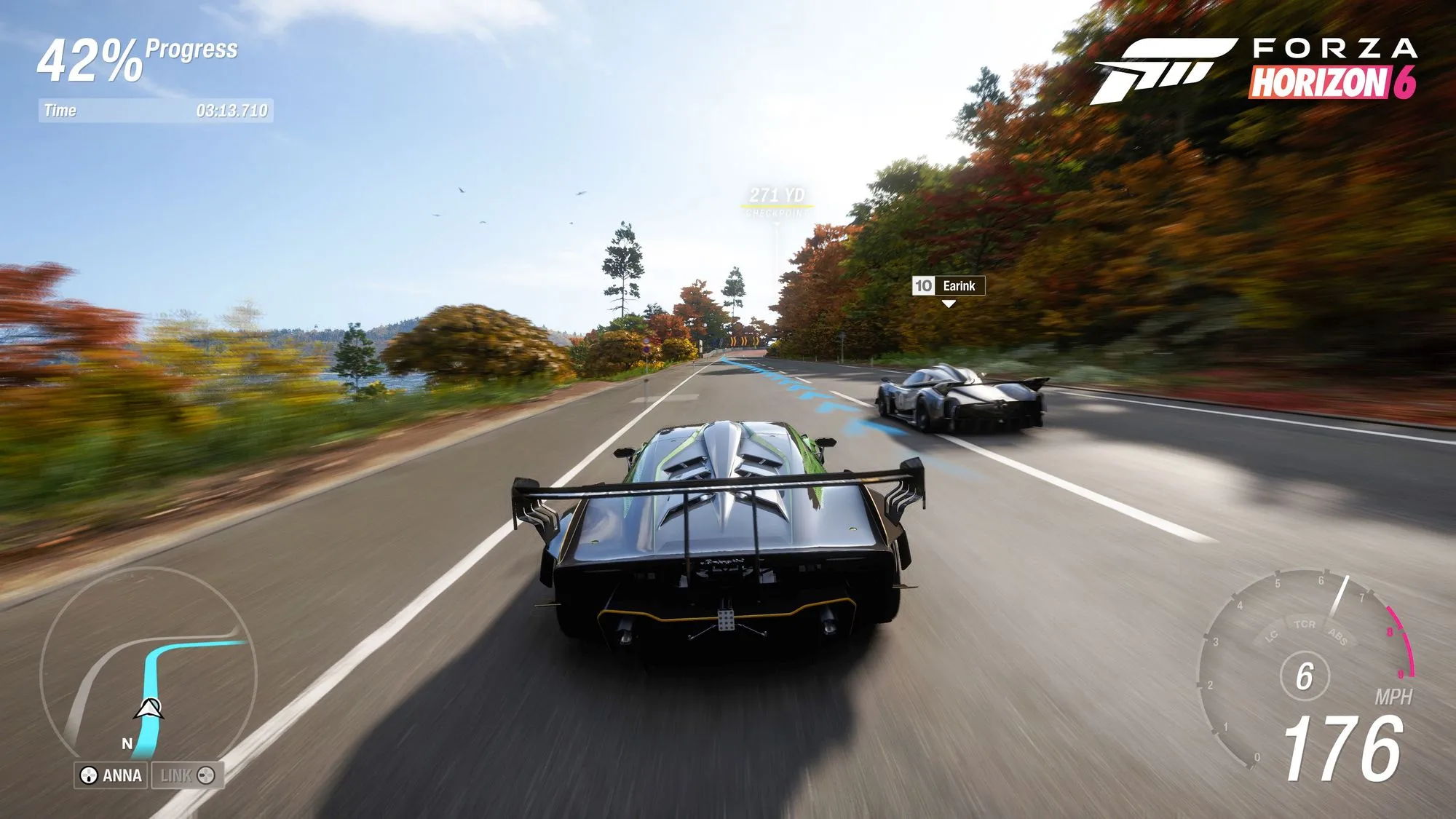
Official Forza media
Low FPS, hitching, texture pop-in, and controller-related stutter point to different layers. Start with reversible checks before trying risky system tweaks.
Low FPS
Consistently low FPS usually points to graphics settings, hardware limits, or upscaling choices.
Stutter
Good average FPS with hitches can point to VRAM pressure, frame pacing, overlays, storage, or driver behavior.
Safe first checks
Run the benchmark, lower textures first when VRAM is tight, close overlays, and avoid risky system tweaks until verified.
Current search demand clusters around fh6 stuttering pc, Forza Horizon 6 stuttering, FH6 hitching, FH6 crashing, FH6 crash fix, FH6 video card crash, and Forza Horizon 6 video card crash FHC01. Use this page for stutter, hitching, FPS drops, and frame pacing. If the game closes with a specific crash code, start on the crash-fixes page and then come back here for performance testing.
Open crash-code fixes| Symptom | Likely layer | Safe first check |
|---|---|---|
| Consistently low FPS | Graphics preset, GPU limit, RT cost, resolution, or upscaling mode. | Run the in-game benchmark, lower RT/Extreme options first, then compare Quality vs Balanced upscaling. |
| Good average FPS but frequent hitches | Frame pacing, overlays, shader compilation, driver behavior, or background capture tools. | Disable overlays/capture tools for one test run, update GPU drivers, and compare capped vs uncapped FPS. |
| Texture pop-in or memory warning | VRAM pressure, high texture settings, RT memory cost, or storage throughput. | Lower texture quality before lowering everything else; confirm the game is on an SSD. |
| Controller-related stutter reports | Community reports mention input-layer conflicts around Bluetooth, Steam Input, XInput, or GameInput. This is not official guidance. | Try a wired controller or a keyboard-only test before changing Windows services. |
| Feature | Why it matters |
|---|---|
| Benchmark mode | Forza Support lists an in-game benchmark and PC memory usage display, useful for diagnosing settings before changing everything. |
| Upscaling | Official PC specs list DLSS 4, AMD FSR 4/3, and Intel XeSS 2.1 support. |
| Ray tracing features | Official PC specs list ray-traced reflections and RTGI, so RT should be tested separately from base preset quality. |
| SteamOS and handhelds | Official PC specs mention SteamOS and handheld support, but practical settings should still be verified per device. |
The knowledge base includes repeated community reports around controller input layers, Steam Input, Bluetooth, and GameInput. Those are useful search clues, but the main checklist should stay reversible: try wired input or keyboard-only testing before disabling Windows services.